Accessing Your Account
Return to
Main Index Go To Top of Page
The first thing you need to do is learn how to access
your account. You will use FTP (file transfer protocol) to transfer
files from your computer to the server, and vice versa. You will also use
FTP to setup email redirects, autoresponders, and infobots for mail lists.
There are other tasks that you will need to use Telnet for, and and even
a few things you can do with your browser.
If you use FrontPage much of this will not apply to you.
However, at the very least, you will want to review the sections on Email
Management to learn about setting up and managing your email.
FTP Access
FTP (File Transfer Protocol) is the preferred method
of uploading files to your website, and vice versa.. You have unlimited
access to your account via FTP 24 hours a day. This allows you to create
and maintain your web pages on your own computer, then upload the files
to your website at your leisure.
NOTE: If you use FrontPage you should
NEVER use regular FTP to upload your files as this will damage the extensions.
Please refer to the instructions in the FrontPage section for uploading
files.
FTP is not a program, it is a "protocol", a specific
method of transferring data from one place to another. Some
online services such as AOL, CompuServe, and Prodigy may have a built-in
FTP interface. If you have a PPP (Point to Point Protocol) Internet
account, you will need an FTP program. We strongly recommend WS_FTP
for PC users, and Fetch for Macintosh users . Please see instructions
below for setting up and using these two programs.
Return to
Main Index Go To Top of Page
WS-FTP For PC Users
In order to FTP into your website you will need the following
information which was included in your account activation notice.
· USERID
· PASSWORD
· FTP HOSTNAME
When you have this information, and a copy of WS_FTP
installed on your computer you will be ready to setup a Session
Profile and FTP into your website.
1. Launch your WS-FTP program. A panel
titled Session Profile will be displayed with the WS_FTP program
window behind it.
2. Click the New button and type a
Profile name into the Profile Name entry box at the top of the panel. This
can be any name you choose, "My Website" for example.
3. Enter the appropriate information into
the following entry boxes:
-
Host Name/Address: Enter yourdomain.com
-
Host Type: Select UNIX (standard) from the menu
-
User ID: Enter your User ID
-
Password: Enter your Password
-
Check the Save Password box if you wish.
-
Leave the other entry fields blank.
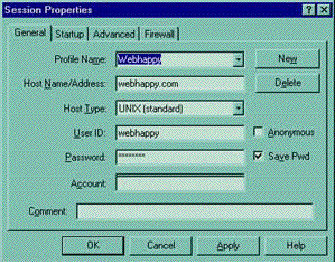
4. Click on the Save button at the top of
the panel to save this Profile. This will eliminate the need for you to
enter this information the next time you launch WS_FTP
5. Click on the OK button at the top right
of the panel. WS_FTP will now attempt to connect to your website.
When you are connected to your home directory on the server, the Profile
panel will close.
Left Window
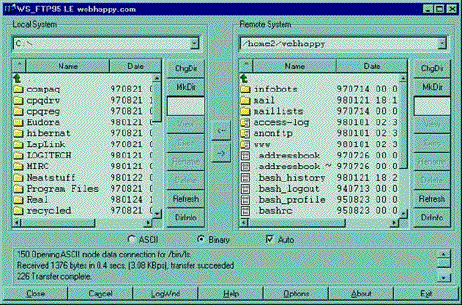
WS_FTP will now display a split screen. The window
on the left contains the folders and files on your own computer. Use the
green arrow at the top of the window and the scroll bars to browse your
system.
Right Window
The window on the right will contain the folders and
files contained within your home directory. This is your space on the server.
This is where you will place your website will be. You will see folders
with names such as www, infobots and access-log.
Binary vs ASCII
or Auto
You will see two radio buttons below the display windows,
one labeled Binary and one labeled ASCII . There will also
be a check box labeled Auto. If you select Auto WS_FTP
will automatically apply the correct setting, either Binary or ASCII
to
the document you are transferring. If you elect not to use the Auto
setting please note that it is very important to transfer images in Binary
mode. Everything else, HTML documents, cgi scripts etc. should
be transferred using ASCII mode. If you fail to set this correctly
your files may not appear as they should.
Upload Files
1. Double click on the www directory
in the right window to open it. This is the directory you will upload
your web pages, files, images etc. into.
2. Highlight a file (or files) from
your computer in the left window.
3. Click the right arrow button (->)
in the center bar between the windows.
That’s it! Your file transfer is complete.
Download Files
1. Double click on the folder you
want to download files into on your computer to open it in the left window.
2. Highlight the file (or files) you
wish to download from your website in the right window.
3. Click the left arrow button (<-)
in the center bar between the windows.
That’s it! Your file transfer is complete.
Create
A New Directory (Folder)
To create a new directory on your website, click on the
MkDir
button when you are inside the www directory or a subdirectory of the www
directory. You will be prompted to enter a name for the new directory.
Once you do this, the new directory will be created.
Multiple File
Transfer
To transfer more than one file at a time, highlight the
first file, then hold down the Shift key on your keyboard to select
more. All highlighted files will be transferred when you click on the appropriate
arrow button to begin the transfer.
Disconnect
When you are finished transferring your files, click
on the Close button at the bottom of the WS_FTP window. This will
close your FTP connection.
Return to
Main Index
Go To Top of Page
Fetch
For Mac
Users
In order to FTP into your website you will need the following
information which was included in your account activation notice.
USERID
PASSWORD
FTP HOSTNAME
When you have this information, and a copy of Fetch
installed on your computer, you will be ready to setup a New Connection
and FTP into your website.
1. Launch your Fetch program.
2. Select New Connection from the File
menu to create a new Connection.
3. Enter the appropriate information into the entry
boxes as indicated below.
HOST: Enter yourdomain.com
USER ID: Enter your User ID
PASSWORD: Enter your Password
DIRECTORY: Leave this entry field blank for now.
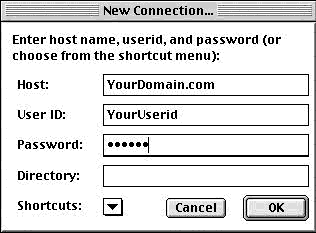
4. Click on the OK button
to connect to your website on the server. When you are connected
the New Connection panel will close, and the main Fetch window will
pop up.
Bookmark Connection
Once you have established a connection you should
bookmark it. This will save you the time and trouble of entering your log
in information each time you want to FTP into your account.
1. From the Customize
menu select New Shortcut.
2. A window titled Bookmark
Editor will pop up. The Name, Host, and User ID entry boxes will contain
the information you used for your current connection.
3. In the Type field, select File
from the pop-up menu..
4. If you would like Fetch to remember your password
type it into Password field.
5. Under the same Customize menu,
choose Preferences, and make sure the connection you just entered
is selected as the default shortcut under the General tab.
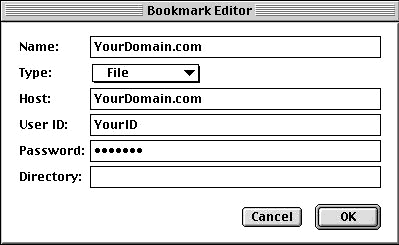
Your Bookmark has been created. The next time you
run Fetch your shortcut will be opened automatically. All you'll
have to do is click the OK button to establish your FTP connection.
Binary vs.
ASCII or Auto
There are three radio buttons at the bottom of the Fetch
Window. One labeled Binary, one labeled ASCII and one
labeled Auto.
If you want Fetch to automatically select the correct
setting, either Binary or ASCII, when transferring your files,
do the following:
1. Select Auto in the Fetch window.
2. Select Preferences, then the Upload
tab.
3. Be sure that the following settings apply:
Default
text format---set to TEXT
Default
non-text format—set to RAW DATA
Check
"Add .bqx suffix to BinHex files"
Check
"Add .bin suffix to MacBinary II files"
Uncheck
"Add .txt suffix to text files"
Check
"Encode
and decode files and folder names"
Word
Wrap Margin…72

If you elect not to use the Auto setting
please note that it is very important to transfer images in Binary
mode. Everything else, HTML documents, cgi scripts etc should be
transferred using ASCII mode. If you fail to set this correctly
your files may not appear as they should.
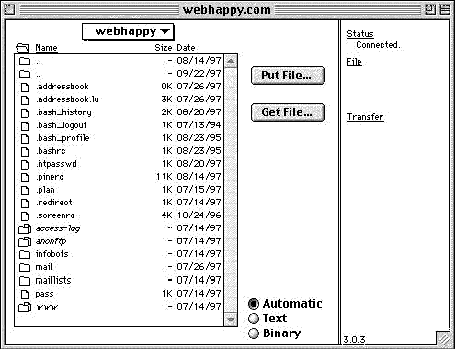
Fetch Window
Your main window will be divided into two parts. On the
left will be a large window which will display the files and folders on
your domain. The narrow section on the right will contain your current
Status,
a File command link and a Transfer command link.
Upload Files
1. Double click on the www directory
in the Fetch window to open it. This is the directory you will upload
your web pages, files, images etc into.
2. Highlight the file (s) on your computer
that you wish to transfer to your website, and click on the Transfer
command link. Or, you may also drag the file(s) you wish to upload
from your hard drive onto the Fetch window and drop them into the appropriate
directory.
Download Files
1. Double click on the folder you wish to
download files to on your computer to open it.
2. Highlight the file (s) on your website in the
Fetch window that you wish to transfer to your computer, and click on the
Transfer
command
link. Or, you may also drag the file(s) you wish to download from
the Fetch window onto your hard drive and drop them into the appropriate
directory.
Return
to Main Index
Go To Top of Page
Telnet Access
Your Telnet account is setup automatically for you when
you open your account. Each User ID has it’s own Telnet account.
See the Fee Schedule to add User IDs to your account. Each Telnet account
has it’s own Home Directory, but will share the same www Directories and
FTP Directories.
Telnet is much like a DOS program in both use and appearance,
requiring specific typewritten commands. There are "power" uses for Telnet,
but only Advanced Users will be able to understand or implement them. The
novice user will probably not need to use Telnet very much or very often,
but some basic knowledge of it will be useful.
Connect
With Telnet
You will need a Telnet program to access your Telnet
account. If you use Windows, you should have a Telnet program already on
your system. To find out, do the following:
Go to Start, select Run and type telnet
into the entry box.
Once you have a Telnet program, launch it, and be sure that
you have a live connection to the Internet.
-
Enter yourdomain.com into the entry box for HOST,
and click on the Connect button, (exact label will vary depending
on the Telnet program you are using)
-
When you are connected, you will be prompted for your User
ID (or userid or login) Type in your User ID.
-
You will then be prompted for your password. Type in your
Password.
Once you are logged in you will see several lines of text
scroll down the screen. When it is finished you will see a blinking cursor
after a word that may look something like this:
helius:~$
This is called the prompt, and indicates the name
of the server machine you are logged into. That is where you will
begin entering your commands.
Return
to Main Index
Go To Top of Page
General
Info For Advanced Users
Some of the programs available at the shell prompt
are:
mail - a primitive email
program
pine - a more powerful
email program
ftp - to FTP onto other
sites
telnet - to telnet to
other sites
pico - an easy to use
text editor
vi - a not so easy to
use (but standard) text editor
Joe - another easy to
use text editor
lynx - a text-based world
wide web browser.
In general, it's a pretty complete POSIX environment.
You access these programs by typing in their names, and then following
commands relevant to each program. If you need help with any of the
programs, at the shell prompt, type man and the name of the program
to get instructions for that program online. If your problem is not knowing
the name of the program, try apropos subject (i.e. apropos mail). It is
important to remember that Unix is case sensitive. "Index.htm" is
not the same as "index.htm."
Note:
If you experience problems with your Telnet program
when accessing the above programs you will need to make an entry in your
login directories bash_profile file. Just add the following to the last
line export TERM=vt100. This will allow you to access all shell programs
properly.
Return to
Main Index
Go To Top of Page
|